Showing posts with label hardware. Show all posts

Wednesday, February 17, 2010

Why I'm skipping the iPad

As a professor on the lookout for new tools to help me effectively teach my students, I couldn't wait to see the new iPad.

I currently use an iPhone to check for emails from my students and respond to them.  I can also check in on my course management system (CMS) but, wow, is that clunky on an iPhone.  And I can't really make changes easily, either.  And keeping my Facebook pages for my blogs for students and professors up to date from my iPhone isn't ideal either.

When I first heard about the iPad, I thought it may be the solution I need for some of these functions I need:
  • An easy way to navigate through and use my CMS while away from campus (and away from hotspots), as when I'm at a conference or taking a weekend hike.

  • Use full-color e-books.  I absolutely love my Kindle . . . but being an anatomy and physiology professor (and author), the monochrome Kindle just won't cut it for my discipline.

  • Print the occasional document using a printer connected to my wireless network.

  • Multitask among my email client, my CMS, and other programs.

  • Allow me to use slide presentations, video, and other media on a large enough screen to share with students.  That includes my Flash-based lecture Previews.
But I'm realizing that the iPad won't help me much, if at all, with these needs.

Did you know that . . .
  • You can't print a document from an iPad
    • Huh?  That's a pretty basic function for a hand-held computer, I think.
  • You can't connect to a monitor or projector
    • So I can't show media to more than a couple of students at time during a help session away from my "smart" classroom.
  • You can't use Flash. 
    • WHAT?!  You read that correctly . . . iPad cannot access Flash-based websites, cannot display certain functions at other websites (the Flash-based features), cannot use the new Flash-based e-book readers . . . . the list is virtually endless.
  • The display isn't designed for reading.
    • Because it doesn't use e-ink (like the Kindle) or even OLED (organic light emitting diode) in the screen,  you're not going to have the same "easy on the eyes" experience of a dedicated e-book reader. I like to sometimes read for an hour more . . . but with the iPad, I think that may be difficult.
  • There is no optical drive and no USB connectivity
    • So if you want to watch or rip video or music media, you'll need a "real" computer.
    • Want to view or edit and save the slides on your thumb drive?  Forget it.
  • You cannot multitask.
    • No switching between open programs like you can on a "real" computer.
    • Oh, my.
Starting at $500, I can't see how the iPad is a solution for me . . . or for a lot of folks.

 I'd love to love an iPad.  I simply cannot.

Anybody out there have a different opinion to offer? 

{NOTE:  You may want to check out 10 Things Apple Doesn't Want You to Know About the iPad }

Saturday, October 24, 2009

Why you need more than one monitor

I know what you're thinking!  Why in the world would I need more than one computer monitor?

Years ago, before I set up my first dual-dual monitor system, I thought the same thing.  Multiple monitors are for day traders and IT managers, right?  Wrong!  Nearly everyone can benefit from multiple monitors . . . especially professors.

Just think what you could do with extra monitor area:
  • Have PowerPoint editor screen open and visible AND your folder of images AND your lecture outline at the same time
  • Display PowerPoint editor AND the actual slideshow at the same time
  • Display your classroom management system (CMS) AND your Excel spreadsheet at the same time
  • See your email inbox AND your current work at the same time
  • Drag images from a folder or editor right into PowerPoint
  • Drag text from your word processor and images from the web right into your test-creation software (or CMS) . . . or at least see them all at one time
  • Make few mistakes, thus increasing accuracy in everything you do
There are just a few of the options that you'll have if you expand your monitor real estate. The primary value in this approach is that you can see everything at once, without having to switch back and forth between windows that are open but not visible. Not only will this make your life easier, research shows  that it will increase your productivity!

In my campus office, I have two wide-screen monitors.  My computer, as with most "off the shelf" faculty systems already had a graphics card with two monitor jacks built in.  All it took was one extra monitor . . . which are comparatively cheap.  Just plug it in and change one setting in the "display" settings of the computer . . . and off I went faster than ever.

One warning, though . . . if your IT folks are like mine, you'll get that "WHAT are you asking for?!" response that these folks learned from their mothers when they asked for a super-turbo gaming PC at age two.  As if we are asking for a new campus building powered by cold fusion.  This sort of set up is becoming increasingly common in business because it increases productivity at a really cheap price.  But in education, it's still rather unheard of.  But somebody has to be the first in their department to do it!  So persist.


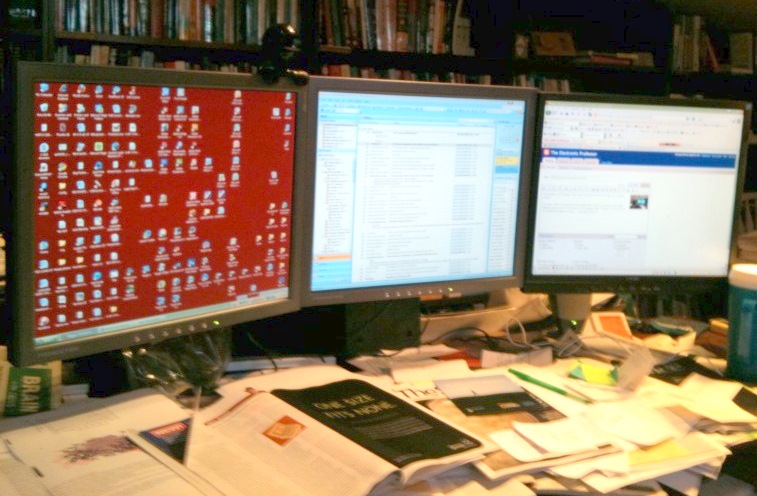
At my home office, I now have moved up to three monitors!  Just like Bill Gates.  That is really sweet because I can have even more windows open at once and have to do even less window-switching than with a 2-monitor setup.  All it took was buying a rather inexpensive second graphics card for my PC.  Because both my cards have 2 monitor jacks, I could easily go to four monitors.  But I'm not sure my field of vision could handle that!

For my home office, I also got one of those multi-monitor pedestals.  That's probably the most expensive part of my setup . . . especially considering that I bought refurbished monitors online for next to nothing.

You can even do this with a notebook or laptop!

Want to know more? . . . here are some resources:
Dual monitors: the only way to go

Step-by-step: A three-screen workstation for $230


Articles from MultipleMonitors.org 
In this month's PC World magazine, Michael Scalisi suggests some tools that may help you:
  • HP USB Graphics Adapter helps you add extra monitors (beyond 2) without installing a card

  • UltraMon software helps manage your desktop displayed on multiple monitors

  • WinSplit Revolution freeware offers shortcuts to quickly send apps from one monitor to another without dragging it
Have I mentioned that using more than one monitor increases productivity?

Please share with us your multiple-monitor setup . . . or your stories about using multiple monitors!