Monday, March 14, 2011

Quizlet

Understanding almost any subject or discipline begins with building a foundation of basic terminology.  You can't think in new ways without new language.  Yikes, that means memorization.  

A lot of folks dread memorization tasks because they simply don't know how to do it in a quick, pain-free manner. Once students know the tricks of memorization, it's not that bad. The essential trick is to practice, practice, practice. That means every day, several times a day, if possible.However, this will only work if we can get our students to spend just a few minutes at a time practicing.

One of the easiest ways we can help students memorize terminology or other basic facts painlessly is to make and use flashcards. 

My friend Monica Hall-Woods (another "electronic professor") reminded me recently of a website called Quizlet.com where students and professors can easily make a set of flashcards online (for FREE) and use it to quickly learn the basic terms or other facts needed in a course.  In fact, Quizlet.com gives users several alternative methods for students to quiz themselves, including some fun, game-like activities.

The more practice sessions theyt do on Quizlet.com, the more your students will almost effortlessly pick up the basic facts they need to learn before they can move on to higher-order thinking.  Quizlet.com helps them keep track of what they've studied and how they are doing.

They (or you) can also upload photos from Flikr.com . . . which means that you can take photos of your models, specimens, maps, locations, etc., with your smartphone, then upload the images into a set of flashcards!

Another great feature of Quizlet.com is that your students can form study groups.  This allows one or more users to post and share sets of flashcards related to a particular topic. Or you can use it to share flashcards you've prepared with the students in your courses.

Quizlet.com also lets students use flashcard stacks that others have created.  (Warning: they need to be careful those they adopt are accurate before using them to study.)  Here's a stack of cards that I created simply by cutting and pasting a list I already had into the Quizlet.com editor:


Try it!  Use different options for quizzing yourself and playing games. I think you'll have fun with it. Which is the point . . . the less pain, the more gain.  At least in this case.

A simpler variation of this service, but with less features, is Word Stash. With this service, professors can set up a "class" if they register a free "teacher account" then you can load in word lists for your students to practice.  You can either copy in the terms and definitions or you can create them in the system, opting to borrow existing definitions from their database for any or all of the terms.

I created a class called, you guessed it, The A&P Student . . . and loaded in a word list to show you how it works. Join this "class" to see how Word Stash works:

Password: theapstudent

studyPerfect

Here are some other sites you may want to check out to help your students learn the language of your course quickly:
Kevin's New Terms study tip
studyPerfect
Kevin's Flash Card video
 Have any more like this?  Share them with us by commenting!


[Some of this material was also used in my blog The A&P Student]

Tuesday, March 1, 2011

The clicker commandment I always violate

I generally agree with the Clicker Commandments, those hard-and-fast rules for success when using clickers (student response systems).  But sometimes, the temptation to break this one is irresistible:

Thou shalt not use more than a few clicker questions per class session.

Like any good commandment, this one often must be followed if we are to stay on the path of righteousness.  But, like any good commandment, there are in fact times when it's best to break the rules.


A good example of my straying from this clicker commandment was previously discussed in the article  Practicing . . . some more in my blog Lion Tamers Guide to Teaching.  The point of that article was the need to practice basic facts frequently in order to become deeply familiar with them.  And I used the example of how I use clickers to provide rapid reviews of basic human anatomy structures in my Anatomy & Physiology course.

I set these up like a game show.  Without the fabulous prizes. Each item has a timer animation and the buzzer sounds after 10 seconds, and reveals the correct identification.  So polling is open for only ten seconds and students who have studied their anatomy are forced to recall it quickly . . . or get "buzzed."  Hmm, maybe a GONG would be more appropriate, eh?  Nah . . . do any of my students have a clue as to what the Gong Show was?!

This works great for facts that need to be memorized . . . if you have the time in class to practice with your students.  The class I use this in is my A&P Supplement course, which is specifically for reviewing and advising.  It's not the "main content" course, but an optional supplement students can take to get extra help in what is a rigorous, fact-filled course.

In my regular courses, I do stick with the notion that a few clicker questions scattered here and there is the best approach.  But for those "quick review" sessions, nothing beats the occasional rule-breaking, fast-paced "practice round" of important facts.

Tuesday, February 15, 2011

Do you Prezi?

One of the many alternatives to the ubiquitous PowerPoint presentation is Prezi.

Prezi is a presentation platform that organizes a presentation a more nonlinear way than PowerPoint . . . a feature that can be useful when using a presentation in more informal discussion format, rather than a traditional lecture format.  That's because Prezi gives you more options for unplanned movement back and forth in your projected material.

One of the coolest features it's unique ability to zoom in and out on different parts of your material.  This gives Prezi a unique visual quality not found in other presenters.

Prezi presentations can be easily narrated and can be embedded in a webpage, email, or blog . . . or in your learning management system.

The best way to introduce yourself to Prezi is to try it out.  Oh, did I mention that it's FREE?  Just go to the Prezi website and get a free account and start playing around!

And be sure to hit the Explore tab, to see all the crazy kinds of Prezi presentations that can be created.

In the mean time, you may want to watch this video to get a feel for the whole Prezi concept.


In a nutshell, here's how Prezi works.

Tuesday, December 14, 2010

Drop.io dropped dead!

MediaFire - Free File Hosting Made Simple
I've gushed about the Drop.io service for a while to my colleagues and in another blog.  I was actually getting ready to gush about it here, now that I've had some time to use it and be more specific about ways to use it for teaching and learning.

It was a great service for educators, allowing us to post large media files (podcasts, slide presentations, images, videos) in password protected "drops."  But as of mid-December 2010, drop.io is dead!

As I've lamented before, the downside of using third-party (meaning not you) software and websites to build resources for teaching and learning is that sometimes they change drastically or disappear completely with no warning.  Leaving one up the proverbial creek.

Apparently, the founder of Drop.io got a better offer from Facebook, which also bought the rights to the Drop.io technology.  Pulling the rug out from under the rest of us.  They couldn't have known the drop-dead date is two days before the end of my semester. But it is . . . and so what do I do now?

Unlike many other services, who recommend clients to another service, Drop.io declined to do that.  Perhaps they were obligated by contract (is Facebook planning to unveil their own version of Drop.io?).  They even disabled the comment feature on their blog, so stranded users cannot share with each other possible solutions. I cannot wait for the next incarnation, if that's what's planned, because my students need access to files now.

The solution I found, at least for now his Mediafire. This is a similar "drop" site.I've just started using it and because it is organized in a different way than I am used to, it is taking some time to become familiar with all of the possibilities. But I wanted to post this option now so that others who are stranded can find a place to land quickly.

Mediafire is a free service that allows you to upload files, even very large files, into folders that can be private or that can be shared publicly. The public folders may contain files that are password-protected. This is very useful to me because I have files that include images and other materials that I have permission to use in my course but do not have permission to distribute publicly. The password protection allows me to post the files for my students in a way that prevents others from accessing them.

I found that the uploading process in Mediafire is much simpler than it was in Drop.io. Organizing my files into groups is also easier. Because I have a very large collection of files to post, I've opted for the "pro" upgrade. There is a small charge for this upgrade. But it also comes with some very handy features, such as the ability to create a custom URL for each folder. Thus, I can use one URL for one course and a different URL for another course. That prevents students from getting mixed up and using the wrong files.

On the other hand, there were some nifty features in Drop.io that I have not yet been able to find in Mediafire.

So I'm really glad to have another place to drop files for my students. If you are looking for a Drop.io alternative, you may want to check out Mediafire.

If any of you have some experience using Mediafire, I'd love to hear from you. or if you have some other drop sites that you have been using an education, let us know about those.

If you want to see how it works, go to http://www.mediafire.com/TheElectronicProf and see what I've posted for you there.  To download a file, you must use the password JohnDewey  (FYI, passwords are attached to files--not folders--so you can have some files that are password-protected and some files that are not).

Want to take a quick tour of Mediafire? Try this video.


Monday, November 29, 2010

More on my WebCT to Moodle conversion

In my last post, I outlined an easy way to convert online tests and quizzes formatted for WebCT into files formatted for Moodle.

Well, it's a few weeks later and our crew has a done a great job of helping me convert my files using the method described.

However, there are few items they found during the conversion process that I thought I'd pass along . . . in case any of you find yourselves in the same situation.

When converting from WebCT to Moodle be aware of these translation issues:
  • In some of my randomized Question Sets (called Random Blocks in Moodle), I used fractional points for scoring.  That is, for "review items" from previous tests I typically give .5 points per correct response (rather than 1.0 points).  However, one cannot do this in Moodle.  All items must be scored in whole points. 
    • To solve this issue, Dave (our Moodle Master) suggests changing all point values to whole numbers.  For example, my .5-pt items all become 1.0-pt items.  Then, all the items that were previously 1.0 point each should be converted to 2 points . . . to keep the ratio of scores the same as the original test.  Then, you can either likewise adjust your course's total points to account for this shift or you can count the test for half of the number of points scored.
  • I have some items that are in the "Matching item" format that have only two possible matches.  For example, I have a list of six functions and ask students to select either "steroid hormone" or "nonsteroid hormone" for each of the six items.  However, in Moodle one must have a minimum of THREE matching items. 
    • Moodle For Dummies (For Dummies (Computer/Tech))
    • So Dave's suggestion is to simply add "Ignore this selection" as the third choice for such items. 
      • I think for some of them, I'll modify that a bit so that it's a more viable distractor based on the content. 
    • And when I get some extra time, I may change the items in question so that there really are three possible answers.
  • In WebCT, some "Multiple Response" items graded as partial credit for selecting each correct item sometimes assigned 33.3% to each of three correct answers.  That meant that WebCT really only have .99 points for a 1-point item.  But WebCT then rounded up so that it really didn't make much difference in the long run.  However, when converting to Moodle, each 33.3% designation became 33.333... instead.  So it's actually more precise that WebCT.  FYI.
  • Short answer items (such as "fill in the blank") were not always case sensitive in WebCT (unless you specified that in the scoring).  In Moodle, such items are always scored with case sensitivity. 
    • So if you want to accept either Eustachian tube or eustachian tube, you have to program in both answers as possible correct responses.
Do you have other WebCT to Moodle conversion advice to share?  If so, please comment!

Sunday, August 15, 2010

Rebuilding online tests in a new platform

In my last post, I whined about having to migrate my online tests from our colleges old LMS system (Blackboard CE / WebCT 4) to our new platform (Moodle).  Using both Moodle's migration tools and those of our vendor (Moodle Rooms), I found that my online tests "broke" when migrated to the new system.

As I've mentioned here before, I provide huge randomized test banks in my courses to produce an almost endless variety of different versions of my online tests. So when my test files broke, it was a big problem. Tens of thousands of items might have to be re-entered.  Hundreds of image files would have to be reuploaded into some of those test items.

Luckily, I found that I had the solution already in hand!  Thanks to the advice of faculty in my department many years ago, I had always constructed my online tests in Respondus before uploading them to Blackboard CE / WebCT 4.

Respondus is a third-party software program that allows you to quickly upload text files of tests or quickly create new test files.  Because Respondus is easier to use than WebCT's native test editor, all my test files already existed in my archive as Respondus files. 

Respondus has a nice feature that allows you to select which platform you want to use for your test . . . WebCT, Blackboard, Angel . . . and Moodle.  So what many of our folks (mainly our hardworking LMS support team) are doing now is opening my WebCT tests in Respondus, toggling the platform to "Moodle" and letting Respondus convert my tests files. 

Because Moodle handles test items and settings a bit differently than WebCT, we still have to check everything after the conversion and make a few adjustments. But this is a heck of a lot better than completely rebuilding my test bank!

In my case, I build my tests and quizzes in Respondus first.  Before uploading them to the LMS.  But if you've never used Respondus before, that's no problem.  The program has a feature that allows you to download your tests from any standard LMS to create a Respondus file.  Then you convert that file to a different LMS format, check it and tweak it, then upload it to your new LMS.

I'd rather be at the circus than doing this.  But it sure beats completely rebuilding everything from scratch.

Click here for a follow up to this topic.

Friday, July 30, 2010

There's a price to pay

Adopting new electronic tools and the interactive strategies for teaching and learning that they enable has a hidden price. Not just the obvious price: the time and effort it takes to learn, implement, and assess any new teaching/learning tool.  But the hidden price that you incur with an ongoing implementation of that new tool.

What is this hidden price? Well, if you spend several years building . . . and assessing . . . and tweaking . . . and upgrading . . . and expanding . . . a set of tools in a particular format, or in a particular platform, or requiring particular equipment, then you are really on a big hook when powers beyond your control pull that format, platform, or equipment out from under your feet!

This has happened to me in overlapping waves over the last couple of years.

It started with my lionden.com website . . . I'd spent a decade building a website of more than 300 web pages using Microsoft's website creator FrontPage.  Well, a couple of years ago, Microsoft decided to pull it from their lineup.  So why not just keep using it?  Because they also pulled support for FrontPage and also pulled the availability of the server-side extensions needed to run a FrontPage website.  Although each page was mostly standard html, some of it was unique to FrontPage . . . and some of it was just old and/or crappy.  But my entire navigation structure collapsed without the FrontPage server-side plug-ins.

Several well-meaning and competent webmasters advised me that converting my page for use with Dreamweaver or other popular website creator (or plain vanilla html editor) would be relatively easy.  Turns out, they were wrong.  They'd never actually done it themselves.  They had only theorized about it.  The truth is, I've had to completely rebuild everything.  Two years into it  . . . and it's still not quite done.  I have a day job, after all.

Then my college decided that they were going to completely rebuild the college website, converting from a standard in-house web setup to a hosted, proprietary CMS (content management system).  Which means that I have to convert all the faculty web pages I've built.  Turns out that the hundreds of flash files needed to play the in-service presentations on my faculty web pages can't be uploaded to the new system . . . at least not in any way available to faculty.  Thank goodness, our webmaster found someone to convert webpages for the handful of us that have a large, complex set of resources on the college website.  And I moved the most complex stuff off the college website and into one of my own websites. But still . . .

While all that is being hashed out, our college then decided to move from Blackboard CE (the old WebCT 4) to Moodle as our LMS (learning managment system).  A test with the fancy migration tools shows that my courses pretty much completely fall apart.

After a decade of building several courses with complex sets of student resources, I now face converting them all quickly to a system that is very unlike the system they were originally built for.  I'm looking forward to having the help of our wonderful support team . . . but it's going to require a LOT of hours to get everything converted and running smoothly.  And there's that day job I still have.

Now don't get me wrong . . . clearly, I'm a big proponent of experimenting with new tools in education.  But as you build or collect such resources, keep in mind that some day you may have rebuild everything.  Either that, or give up that teaching/learning strategy that you have come to rely on to help you and your students achieve your goals.

In other words, when you implement a new strategy, I think it pays to think about . . . and plan for . . . the likelihood that you may have to rebuild sometime in the future.  A price to pay . . . maybe . . . someday.  So building in transportable modules where possible, keeping raw files of documents and images tucked away in your archives, and recording sources of your borrowed resources seems like a good strategy to reduce the time and effort that may be needed should the rug be pulled out from under you. And where possible, you may want to create and maintain your own website and other resources rather than relying on your college or university system.

Coming soon . . . a nice shortcut that I found to quickly rebuild online tests, quizzes, and exams, in a new platform.
.
.

Monday, July 12, 2010

Free webinar for teachers

I just learned about a FREE webinar for teachers that highlights some nice tools that you may not be aware of yet. It's called Free Tips, Tricks, and Technology Tools for Teachers and is hosted by Innovative Educators.  

I'm not sure how long this webinar will be FREE . . . usually Innovative Educators charge a substantial fee for their products.  So I'd take advantage of this quickly.  And it does give you an idea of whether the usual fee charged by this company is a good investment for you (or your school).


It's an "on demand" product, which means that you can access it when you want to . . . there's no specific date or time.

Some of the resources featured in the webinar include:

Open Office
Google Docs
Google Apps
Google forms
Flickr
Wikipedia
Wikimedia
skype
GIMP
Audacity
 Windows Movie Maker
My DropBox
Prezi
CoMapping
wordle
jing    
irfanview

Here's the URL to gain access to the webinar http://my-ap.us/a2BedP
.
,

Saturday, February 27, 2010

Share your world

One of the increasingly popular ways to share your PowerPoint slides and handouts with your students and colleagues is the web service SlideShare.

You can use SlideShare to upload your slides and share them publicly or privately.  Private sharing, where you give you students a secret URL, may be useful when using copyright images that you shouldn't be broadcasting widely or when sharing presentations that you don't necessarily want the whole world viewing.  Such private sharing is not a particularly strong wall against misuse of your material . . . but is pretty effective most of the time.

Presentations that you've uploaded to SlideShare can later be narrated, which is a great feature.  That means that you could use SlideShare to host virtual lectures or introductory previews.  You can even embed them in your online syllabus or course management system.

Your students and colleagues can either view your presentation on the SlideShare website in a viewer (or full screen), or they can download the file and play it in PowerPoint directly.  Colleagues could perhaps edit and add to your presentation, then upload their version for sharing.

One of the best features of  SlideShare is that it's FREE!

Here's a sample of a narrated presentation from SlideShare that you might want to share with your colleagues.

Wednesday, February 17, 2010

Why I'm skipping the iPad

As a professor on the lookout for new tools to help me effectively teach my students, I couldn't wait to see the new iPad.

I currently use an iPhone to check for emails from my students and respond to them.  I can also check in on my course management system (CMS) but, wow, is that clunky on an iPhone.  And I can't really make changes easily, either.  And keeping my Facebook pages for my blogs for students and professors up to date from my iPhone isn't ideal either.

When I first heard about the iPad, I thought it may be the solution I need for some of these functions I need:
  • An easy way to navigate through and use my CMS while away from campus (and away from hotspots), as when I'm at a conference or taking a weekend hike.

  • Use full-color e-books.  I absolutely love my Kindle . . . but being an anatomy and physiology professor (and author), the monochrome Kindle just won't cut it for my discipline.

  • Print the occasional document using a printer connected to my wireless network.

  • Multitask among my email client, my CMS, and other programs.

  • Allow me to use slide presentations, video, and other media on a large enough screen to share with students.  That includes my Flash-based lecture Previews.
But I'm realizing that the iPad won't help me much, if at all, with these needs.

Did you know that . . .
  • You can't print a document from an iPad
    • Huh?  That's a pretty basic function for a hand-held computer, I think.
  • You can't connect to a monitor or projector
    • So I can't show media to more than a couple of students at time during a help session away from my "smart" classroom.
  • You can't use Flash. 
    • WHAT?!  You read that correctly . . . iPad cannot access Flash-based websites, cannot display certain functions at other websites (the Flash-based features), cannot use the new Flash-based e-book readers . . . . the list is virtually endless.
  • The display isn't designed for reading.
    • Because it doesn't use e-ink (like the Kindle) or even OLED (organic light emitting diode) in the screen,  you're not going to have the same "easy on the eyes" experience of a dedicated e-book reader. I like to sometimes read for an hour more . . . but with the iPad, I think that may be difficult.
  • There is no optical drive and no USB connectivity
    • So if you want to watch or rip video or music media, you'll need a "real" computer.
    • Want to view or edit and save the slides on your thumb drive?  Forget it.
  • You cannot multitask.
    • No switching between open programs like you can on a "real" computer.
    • Oh, my.
Starting at $500, I can't see how the iPad is a solution for me . . . or for a lot of folks.

 I'd love to love an iPad.  I simply cannot.

Anybody out there have a different opinion to offer? 

{NOTE:  You may want to check out 10 Things Apple Doesn't Want You to Know About the iPad }

Sunday, February 7, 2010

Ustream for professors

Have you been to Ustream yet?

It might be the biggest thing for providing videos to your students since YouTube (or the education-oriented knock-off TeacherTube)--both of which I recently told you about.

Ustream  is a website where you can use your webcam to broadcast live from your computer.  For FREE!

Because Ustream allows unlimited internet broadcasts, you can broadcast to an unlimited number of students or colleagues.  Here are just a few ideas:
  • Broadcast your class to students who are ill, or are at a distant location.
  • Broadcast help sessions or tutorials to students.
  • Hold online orientations to your courses (especially useful for distance education courses).
  • Broadcast demonstrations that would be difficult in the classroom.
  • Visit remote locations to which you cannot bring the entire class (virtual field trips).
  • You know that already-answered question you still keep getting? Broadcast it and forget it!
  • Broadcast "preview" introductions to lectures or demos before class time, so students are better prepared.
  • Host live webinars with students or colleagues . . . anywhere in the world
  • On a field trip or research trip . . . or stuck in your lab?  Broadcast back to the classroom live from your location.  Bring your scholarly activity to the classroom, without having to take the whole class along.
  • At a conference?  An out-of-town funeral?  Hold class anyway by broadcasting from your location back to the classroom.
  • Hold a virtual meeting with colleagues on other campuses.
  • Your entire class can watch live or recorded broadcasts of current events such as political debates, rocket launches, disaster sites, sporting events, wildlife activity, etc.

Because you can record your live broadcasts on Ustream , or upload previously recorded video from YouTube or your computer, viewers can access your content asynchronously.  So you have to put your head into the lion's mouth only one time for that dramatic demonstration . . . and never again after that.

If  you teach at a school where cutting-edge teaching technology is frowned upon as too risky for the network, you'll be glad to hear that neither the sender nor the receiver of a Ustream broadcast has to have any special software installed.  Well, you do need a browser . . . but all you need is a browser. OK, a webcam helps if you are the one broadcasting.

However, you can opt to download a FREE desktop application called Ustream Producer, which helps you import movies, audio, screen captures, and more, into your broadcasts more easily.  They also have iPhone and Android apps you can use to broadcast from your smartphone.

Hmmm, wouldn't that be great when you have a chance to meet a hero in your discipline, such as a famous scientist or historian, to be able to broadcast a quick chat with them and share this with your students?

You can embed live or recorded broadcasts in your webpage or a PowerPoint slide, or simply link to them.

Check it out for yourself at ustream.tv

And here's an example of a live feed of a hummingbird nest.

Saturday, November 21, 2009

Why professors should be engaged in social media


If you landed here, you probably don't need a primer on what social media is.  But you might want to learn why it's important for professors to be fully engaged in social media.

I often have my students do a preview lecture on their own before they hear what I have to say.  So let's try that now.  First, check out this slide show called What the F**K is Social Media: One Year Later (pardon my French, but it IS the title of this presentation).

So OK, now we see that this is the way that most people are now communicating . . . yikes, even more than email! And more importantly, this is the way people are networking and forming communities.

As educators, I think we must be fully engaged if we are to be effective in facilitating teaching and learning . . . if we are to be effective agents of growth and change in our culture. And if that means being part of the "social network" of Facebook and the blogosphere, then maybe we should seriously consider that . . . lest we fall into the age-old trap for academics: shutting ourselves up in an ivory tower.

I recently had a colleague of mine tell me that she would never have a Facebook account because she was told that students would access it  . . . and that is bad.  I'm not exactly clear on why this would be bad.  I suspect the issue was that private matters (such as political or religious views. . . or that photo with a lampshade on your head that "friend" tagged you on their Facebook page) could be detrimental to the faculty-student relationship.   Or that the familiarity often bred on such sites could "cross the line" of effective faculty-student relationships.  Both of which are valid concerns.

However, although such concerns should be seriously considered and such risks managed, one can still safely and effectively use social media to further one's educational outreach and strengthen existing teaching-learning relationships.  For example:

  1. Keep your personal Facebook (or Twitter, or . . . ) page private.  Set your privacy settings so that only your friends have access to your information and posts.  Then set up a separate page for your "professor persona."  My Facebook page for The Electronic Professor persona is managed through my personal Facebook account, but public access to it is complete separate from my private Facebook identity.  Likewise, The Electronic Professor Twitter identity is separate from my personal Twitter identity. 

  2. Write a blog.  I'll be addressing the "how to" part of this in a later post.  But by publishing a blog, you don't have to link to any private accounts or private information.

  3. Establish a wiki.  As with blogging, this is completely separate from your personal social networking identities.
So the next question is what do I do when using social networking tools? Of course, the list is endless . . . limited only by your imagination.  Or the imagination of others with brilliant ideas that you can rip off, er, borrow from.  Here are some ideas to get the juices flowing . . .
  1. Create a wiki for a course you teach.  This allows your students (perhaps from different course sections) to network with each other by sharing tips, resources, class projects (term papers, essays, lab  reports, videos) and even assignments with the wiki community.  Students can then learn from each other and perhaps even offer constructive suggestions to each other to improve their work.  And possibly see that others (besides the professor) find certain elements of their work to be less than satisfactory.  By doing this on a wiki rather than within a classroom management system (CMS; such as Blackboard, Angel, etc) students from past courses can remain in the community of they choose and continue to contribute and learn. (FYI, wikis can be "private" and allow only those you permit to access them.)

  2. Create a blog for a courseThe Social Media Bible: Tactics, Tools, and Strategies for Business Success
    you teach.
    Chris Sullivan has a great blog that he uses to keep his human anatomy & physiology students engaged in the course by updated them on current news items that relate to what they are studying. My blog The A&P Student includes study tips for a rather intense subject.  One could have a blog that simply contains course news and updates, including assignments. Because blogs are easier to navigate than your CMS, it's a good option.  Besides, your students can then easily receive updates via Facebook, Twitter, SMS messages on their phones, etc., which are not likely in your CMS.  Imagine being able to get a reminder to students an hour before a class starts!

  3. Create a Facebook page for your "professor" persona.  Tell students about why you are passionate about your subject.  Why you've chosen the instructional methods you use in your courses. Keep them updated on class events and assignments.  Give them tips for succeeding in your course.  This may keep them engaged in ways you never thought possible.
These are just a few ideas that may get you thinking about expanding your educational presence out of the classroom and out of your office and into the wide world of social networking.

You may want to revisit my previous articles on social networking.

If you want to know more about the world of social networking, even if you know nothing about it now, I highly recommend The Social Media Bible: Tactics, Tools, and Strategies for Business Success.  OK, I know the title is about "business" but it's a great resource for educators, too!

What social networking have YOU used in your role as a teacher?  What worked well for you?  What problems did you encounter?  (Hit the comment link to respond)

Saturday, November 7, 2009

Portable applications


When you move around to different computers on your campus or the public library or while traveling, you may want to carry your software applications with you.

Privacy concerns . . . and the fact that what you need may not be installed in every computer that you use . . . makes "portable applications" very attractive.  Not only that, but with portable applications you take all your personal settings and tweaks, such as bookmarks and favorite formats,  with you as you move around.

There are two easy ways to do this. And you can mix and match these strategies to fit your needs.

Strategy One: Web Applications

Web applications are internet-based based programs that are installed on a website and not on your computer. All you need is a browser to get to them.  Many of them also store your documents in a password-protected account so that you don't even have to carry your data with you.

Probably the best known suite of  FREE web applications are Google Apps, which includes Google Docs with word processing, spreadsheets, presentations, and more.  There's even Google Sites  for creating web pages. Note: Google Apps has some special programs for education.

For more FREE web applications, go to this link:


Strategy Two: Applications on your Flash Drive

A number of popular software applications are available in versions that are installed on a flash drive and can be taken wherever you want without having to install them on a computer.

For example, the popular FREE office suite Open Office also comes in a portable version: Portable Open Office.

Portable Apps maintains a great collection of this type of application.  Check out their FREE suite of portable applications that will get you started with much of what you need.

Please share with us your favorite portable apps!  What interesting educational uses have you made of them?

Saturday, October 31, 2009

Retaining and satisfying online students


Although I'm a bit new at teaching entirely online courses, I've been teaching web-enhanced courses for years.  Yet, I still feel like I have a lot to learn.  For example, how do I keep my students engaged when I'm not face to face with them?

Our friends at Faculty Focus have new FREE report available that will interest you . . . Strategies for Increasing Online Student Retention and Satisfaction.

Despite the tremendous growth of distance education, retention remains a troubling problem. As an increasing number of colleges and universities identify online education as a critical component to their long-term strategy, the issue of retention can no longer be ignored. It is mandatory for everyone who touches the web-based learner to understand why these students leave their online courses, and what it takes to keep them there.

Free to Faculty Focus subscribers (a FREE registration), this timely report provides practical strategies for improving online student retention, engagement, and satisfaction. Articles include:
  • 11 Tips for Improving Retention of Distance Learning Students
  • Taking a Holistic View of Student Retention
  • Eight Suggestions to Help You Get Your Retention Act Together Now
  • Online Mentoring Builds Retention
  • Finding Helpful Patterns in Student Engagement
Download this FREE report now:


Intererested in other FREE reports from Faculty Focus? 

Try this link: FREE REPORTS

{some of the above material comes directly from Faculty Focus}

Saturday, October 24, 2009

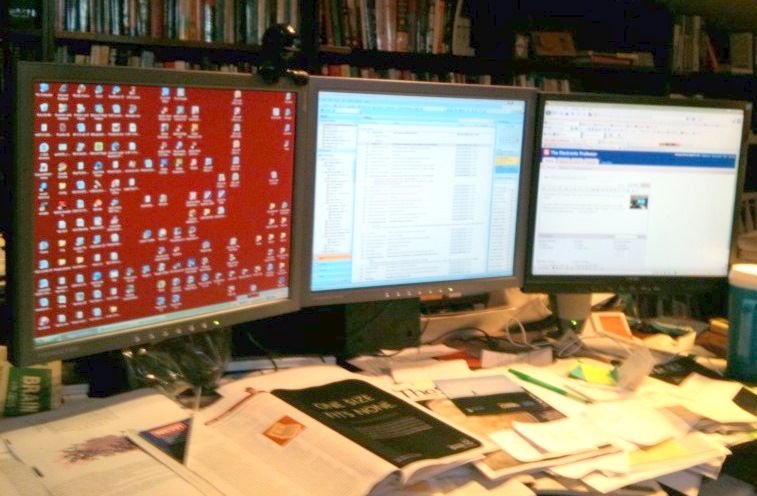
Why you need more than one monitor

I know what you're thinking!  Why in the world would I need more than one computer monitor?

Years ago, before I set up my first dual-dual monitor system, I thought the same thing.  Multiple monitors are for day traders and IT managers, right?  Wrong!  Nearly everyone can benefit from multiple monitors . . . especially professors.

Just think what you could do with extra monitor area:
  • Have PowerPoint editor screen open and visible AND your folder of images AND your lecture outline at the same time
  • Display PowerPoint editor AND the actual slideshow at the same time
  • Display your classroom management system (CMS) AND your Excel spreadsheet at the same time
  • See your email inbox AND your current work at the same time
  • Drag images from a folder or editor right into PowerPoint
  • Drag text from your word processor and images from the web right into your test-creation software (or CMS) . . . or at least see them all at one time
  • Make few mistakes, thus increasing accuracy in everything you do
There are just a few of the options that you'll have if you expand your monitor real estate. The primary value in this approach is that you can see everything at once, without having to switch back and forth between windows that are open but not visible. Not only will this make your life easier, research shows  that it will increase your productivity!

In my campus office, I have two wide-screen monitors.  My computer, as with most "off the shelf" faculty systems already had a graphics card with two monitor jacks built in.  All it took was one extra monitor . . . which are comparatively cheap.  Just plug it in and change one setting in the "display" settings of the computer . . . and off I went faster than ever.

One warning, though . . . if your IT folks are like mine, you'll get that "WHAT are you asking for?!" response that these folks learned from their mothers when they asked for a super-turbo gaming PC at age two.  As if we are asking for a new campus building powered by cold fusion.  This sort of set up is becoming increasingly common in business because it increases productivity at a really cheap price.  But in education, it's still rather unheard of.  But somebody has to be the first in their department to do it!  So persist.


At my home office, I now have moved up to three monitors Just like Bill Gates.  That is really sweet because I can have even more windows open at once and have to do even less window-switching than with a 2-monitor setup.  All it took was buying a rather inexpensive second graphics card for my PC.  Because both my cards have 2 monitor jacks, I could easily go to four monitors.  But I'm not sure my field of vision could handle that!

For my home office, I also got one of those multi-monitor pedestals.  That's probably the most expensive part of my setup . . . especially considering that I bought refurbished monitors online for next to nothing.

You can even do this with a notebook or laptop!

Want to know more? . . . here are some resources:
Dual monitors: the only way to go

Step-by-step: A three-screen workstation for $230


Articles from MultipleMonitors.org 
In this month's PC World magazine, Michael Scalisi suggests some tools that may help you:
  • HP USB Graphics Adapter helps you add extra monitors (beyond 2) without installing a card

  • UltraMon software helps manage your desktop displayed on multiple monitors

  • WinSplit Revolution freeware offers shortcuts to quickly send apps from one monitor to another without dragging it
Have I mentioned that using more than one monitor increases productivity?

Please share with us your multiple-monitor setup . . . or your stories about using multiple monitors!

Sunday, August 30, 2009

Twitter in Higher Education . . . a report


This just in from Faculty Focus . . . they have just released the results of their survey of about 2,000 higher education professionals regarding their use of Twitter. Twitter, as you know, is the suddenly ubiquitous "mini-blogging" tool used by millions to keep their "followers" updated on their latest news.

The 20-page report reveals some interesting statistics, such as
  • Nearly one-third (30.7 percent) of the respondents say they use Twitter in some capacity.

  • More than half, (56.4 percent) say they’ve never used Twitter.

  • 71.8 percent of current Twitterers expect their usage to increase this school year.

  • 20.6 percent of current non-Twitter users say there is a “50/50 chance” they will use Twitter as a learning tool in the classroom in the next two years.

  • 12.9 percent of respondents say they tried Twitter, but stopped using it because it took too much time, they did not find it valuable, or a combination of reasons.
If you are curious about using Twitter as one of the tools in your toolbox, or perhaps confirm your suspicion that you don't want it in your toolboxyou'll want to take a look at this report.

Monday, August 17, 2009

It's time for a Kindle


What?! You don't have one yet?

OK, I've only had mine less than a year . . . but wow, do I love my Kindle!

In fact, it's now hard for me to read a novel in paper any more. Why? Let me tell you . . .

First, you ought to know that I was one of those "I need to feel the pages as I turn the page" kind of guys. I NEVER thought it would be enchanting to read on an electronic reader. But as an educator and author and earnest practitioner of electronic-based teaching and learning strategies, I thought I should at least try it. Besides (I told myself) I should do it "for the blog."

OK, I kinda like electronic toys, so that was part of it, too.

But, wow, I didn't think I'd fall in love!

This darn Kindle 2 is lightweight (far lighter than most books I read . . . even the small paperbacks). It can pack more volumes than I've attempted . . . so it's great for traveling. And for those of us that switch back and forth between novels, non-fiction books, newspapers and magazines, and other reading material, the Kindle is a great solution.

Speaking of "other reading material" I can even load student papers, my own reports or chapter drafts, and other document files into my Kindle. I can then read them "on the fly" wherever I am . . . and I can bookmark them, annotate them, etc., right there on the Kindle.

I subscribe to the Associated Press science feed and to the daily New York Times. In either, I can clip and save articles, including highlights and bookmarks.

For a minuscule fee, you can also download this blog into your Kindle . . . see The Electronic Professor for more information.

And that's not all (oh no, I'm starting to sound like a TV infomercial) . . . you can also surf the web! It's connected via a cellular network (Amazon calls it WhisperNet) and for NO CHARGE will allow you to surf to this blog, or anywhere else you'd like. As with any mobile device, some websites won't look that great because of the size of the screen and the fact that it's monochrome. But when you're away from your home or office . . . wow.

Amazon (makers of the Kindle) probably prefers that you use the connectivity mainly to download their Kindle books. Which isn't a bad feature. I was at a conference recently with some extra time to catch up on my reading. I finished a fun novel and wanted to read the next one in the series . . . NOW. So I downloaded the next title and within minutes was into the first chapter of the next book in the series. Talk about efficient reading!

And before you know it, textbooks and/or supplements will regularly read on e-readers like the Kindle (it has already begun on a small scale) and if you are a reader of this blog, then I know you like to be ahead of the game on things like that.

All right, I'm gushing too much, I know. Check it out for yourself and see if you agree.


Monday, August 10, 2009

Webspiration


I've enjoyed working with a software tool called Inspiration for years. My website for students includes a suggestion for using the award-winning Inspiration tool to build concept maps. Now, those brilliant folks at Inspiration Software have put the functionality of this remarkable chart-builder online . . . for FREE!

Yep, you read that right. They are "beta testing" the new web-based version, and are offering it to early "guinea pig" users like you and me for nothing . . . nada . . . zilch.

The web-based version is called Webspiration. Well, ok, the name is less than inspirational but the idea of the product is a good one. I guess if you use it repeatedly, it's Respiration, eh? If you use it year after year (perennially) then its Perspiration.

All right, enough of that.

Either Inspiration or Webspiration can used by you and your students to:
  • demonstrate concept maps (mind maps)
  • construct an image for teaching (in a slide or in a handout or on your course website)
  • plan or organize your course, study time, a project
  • organize any information
  • learn a new concept
  • learn how new and old concepts relate to one another
  • develop new ideas
  • diagram processes
  • illustrate lab reports and term papers
  • creating study guides
  • ok, the list is limited only by your imagination, right?
They even have some really well done tips for college students on how to use the software to create study guides, construct an outline for writing a paper, etc.

Want to know more?
Webspiration - sign up for the FREE beta version

Inspiration - the original off-line version

Concept Maps
- my web article for students
Let us know how YOU are using either tool in your courses! (simply comment on this post)

Tuesday, August 4, 2009

Back to school


After taking some time off from the blog this summer, I'm getting back into the swing of things as the new academic year begins to unfold.

So starting next week, you can expect more blog articles about electronic tools and strategies that may interest you.

And as always, if there's anything you want to share . . . please send me what you have (either information or a complete article) and we'll try to get it out there!

Thursday, May 14, 2009

Why faculty need their own websites


Over ten years ago, I decided to get my own independent website to use for teaching and other faculty purposes. I am SO glad I did! Let me tell you why I did it, why I'm glad I did it, and why you should get your own website, too!

The main reason I created my first independent website for students back in olden times is that our college then had a policy that if I posted a syllabus or any other material on the web it had to be sent to my dean for approval, then to the VP for marketing, then to the webmaster, THEN I could go ahead and post it. Not only when I was posting new material, but even when I wanted to change a typo or add an assignment! Clearly, the benefits of immediate publication were lost in this process. And talk about a disincentive to keep your pages current! So I completely avoided cumbersome policies and procedures at my college.

Another reason that I went in this direction was because I was teaching another course at another school. Some of the same resources could be used by students at both schools. Using two different websites, I'd duplicate much of my efforts. Using resources at one school for students at another school had its problems, too. So may own website allowed me to consolidate my efforts.

Also, being an author of educational material, I know how important it is for faculty to maintain ownership of their work. I don't want my school to own my work, because if they do then I can't use it at another school and I can have a textbook or software company publish it for me. There is a lot of legal precedent on my side, but web pages independent of any school can help avoid any claims on my work.

Of course, the down side to moving in this direction is that I'd have to be my own web page programmer and be my own webmaster.

But it turned out that this was not such a big deal. One can easily build a website with approximately the same skills as using a word processing program. Also, there is the up side to being your own webmaster . . . you are in control. You can do pretty much anything you want to do with your web pages. The only really hard part is getting over that huge hump of deciding to just go for it.

OK, this worked for Kevin . . . but why should I have my own website?

Here are some thoughts:
1. You are in control. No college policies or procedures. No standard design or limited web space or bandwidth to adhere to.

2. You can use it for more than one school or organization.

3. Helps you maintain ownership of your intellectual property.

4. You can password-protect your site (or certain pages) if you need to.

5. It's cheap. Often FREE.

6. It's flexible. You can change your design, your content, your format, any time you please.
Next time, I'll summarize some of the options you have in starting your own website.

Want to get started now? Or just reserve a domain name while you think it over? I recommend the world's leading website hosting provider 1&1 Web hosting. They happen to be having a sale right now, so it's even cheaper than usual to get started.

Use this FREE domain checker to see if the domain name
you want is available
!


Banner

Thursday, March 19, 2009

Jing screen-capture service


Ever need a simple FREE way of walking someone through a simple procedure on the computer? Or wanted to provide a quick orientation to your website or your online course? Or wanted to share a quick review of a couple of slides from yesterday's lecture?

I can't tell you how many times I've walked somebody through a procedure on my course management system by getting on the phone and saying, "see that little button to the left? Yes, that's the one. Click it. Now what do you see? . . ." Or how many times I've emailed a student a message something like, "remember that slide from yesterday's lecture with the big purple circle in the middle? That was the nucleus. Do you remember the darker purple area inside it? That was the nucleolus. And yellow area represented . . . "

Wouldn't it be SO MUCH better to quickly run through it myself on my desktop while recording a short screencast . . . and send it right to the student? Then post a link to the same screencast on my course website so that other students can find it?

Wouldn't it even better if it such a thing were SIMPLE and FREE?

Have I got a deal for you . . . some of my friends at HAPS Institute have been using this FREE software and screencast sharing service called Jing. When I started getting jinged with these nice little screencasts showing me how to get up to speed on a new course management platform, I got hooked.

The FREE version of Jing does pretty much everything you need it to do. For a mere $15 per year (about $1.25/mo.) you get a few more nice little bells and whistles, like an option to post directly to Flikr or YouTube.

Here's a little sample of a quick Jing presentation I put together within just a few minutes:


[NOTES: Be sure to select "Large size" at the top of the player for the best quality. Also move your mouse off the player, which removes the navbar along the bottom so that you can see the material on the bottom of the screen. My Jing also includes a small webcam shot of me in the lower corner. That's certainly not required, but shows you another way to use the software. All I did was open my webcam capture software and position it alongside browser window I wanted to demonstrate.]

Here's a video that gives you a short intro to Jing:

[The video player embedded here may not appear in your news feed or emailed newsletter. Go to The Electronic Professor blog to access the video viewer. Go to my The A&P Professor website to learn how to embed the video in your PowerPoint or webpage . . . or simply link to it from your own email or webpage.]

Also check out these resources:
A few important notes:
  • There is a five-minute limit to each video clip. So these are useful for those "short and sweet" demos. Camtasia, made by the same folks that produce Jing, would be an option for longer presentation.

  • You can also do still image video captures with Jing. You can add labels and arrows and such to these screen captures.

  • Where you send the final capture, how it is stored, and so on is completely customizable
Why not *comment* on the blog to share your proposed uses for Jing? Or perhaps you have some Jings you can share with us?